
Best Animation Making App for Android: Top 7 Animation Apps for Android in 2025 – Create 2D & Motion Graphics on Your Phone.
What Makes a Great Animation App?
Before we jump into the app list, it helps to know what features set top apps apart. A strong animation app should ideally offer:
- intuitive drawing / timeline interface
- support for layers & onion-skin (seeing previous/next frames)
- good export options (video, GIF, PNG sequence)
- tools for both 2D hand-drawn animation and motion graphics / keyframing
- performance that works on Android phones & tablets (not just desktops)
As many experts observe, the mobile space has matured so much that apps previously for desktops now have capable mobile versions.
Best Animation Making App for Android
Here are the 7 best apps you should check out, with what makes each one special.
1. FlipaClip
Why it’s a great choice:
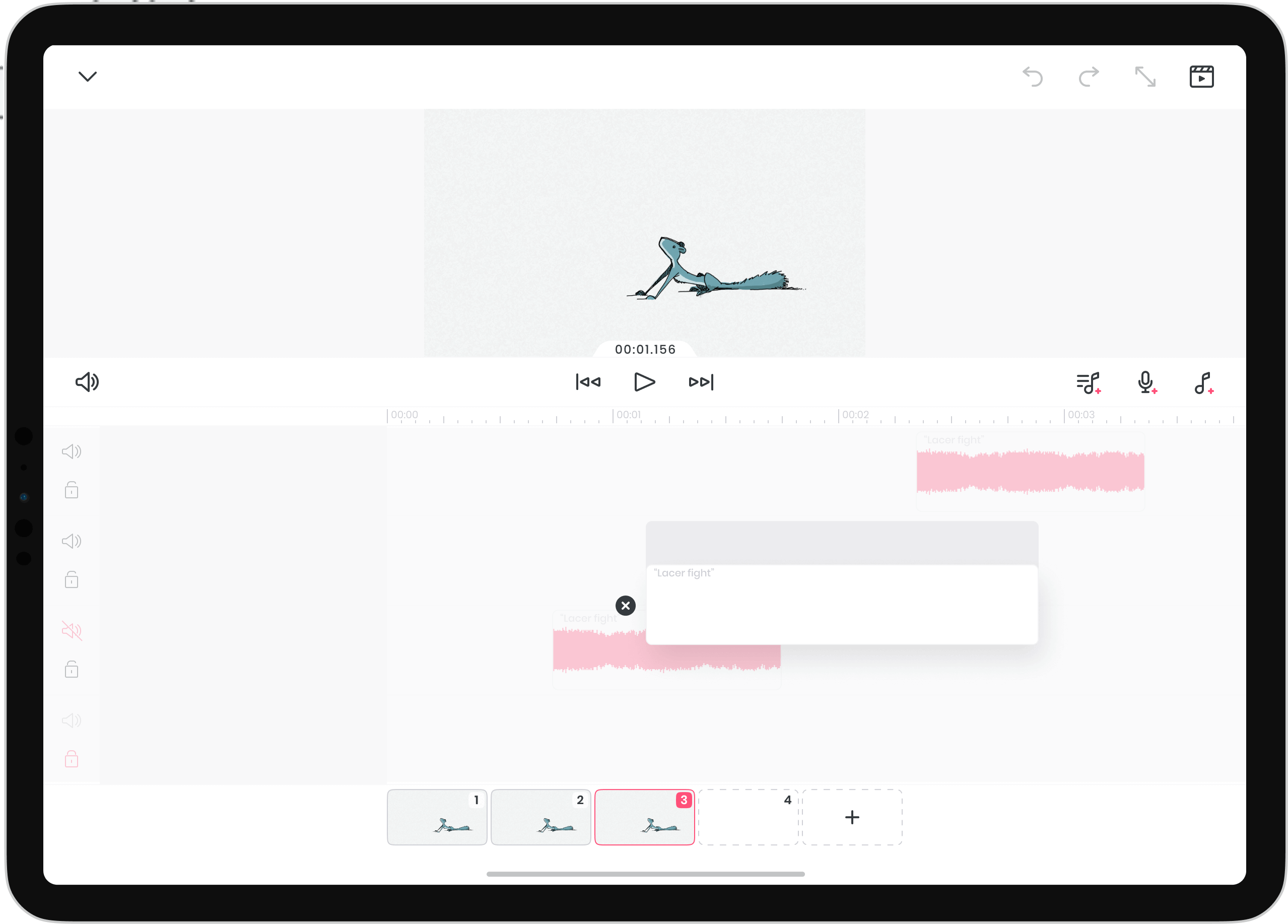
- Highly regarded as a beginner-friendly, yet capable 2D frame-by-frame animation app on Android. Google Play+2Wikipedia+2
- Supports drawing with layers, onion-skinning, importing audio & video, exporting in various formats. Wikipedia+1
- Active community, easy to pick up for casual creators, students or hobbyists. Wikipedia
Considerations: - Free version has limitations (e.g., watermark, fewer features); the paid version unlocks more.
- If you need advanced motion-graphics (rigging, keyframe camera) you might outgrow it.
2. Animation Desk

Highlights:
- Designed for storyboarding and full animations: supports timeline, layers, onion skin, export to video/GIF. Kdan+1
- Suitable both for amateurs and more serious animators.
Cons to keep in mind: - Some advanced features locked behind in-app/premium version.
- More of a traditional animation workflow — less focused on motion-graphics / effects.
3. Alight Motion

Why you’ll like it:
- A professional-level motion graphics / animation app built for mobile. Supports keyframe animation, vector + bitmap graphics, multi-layer editing. Google Play+1
- Good for creators making animated videos, social media motion graphics, content beyond simple frame-by-frame.
Things to watch: - More learning curve than simple apps.
- Free version has watermark; premium needed for full output freedom.
4. RoughAnimator

Best for: traditional hand-drawn animators working on the go.
- Gives you unlimited layers, good control, designed by animators.
- If you already draw or sketch and want to animate on tablet/phone, this is solid.
Note: Paid app one-time cost; more suited for serious work than casual doodling.
5. Synfig Studio (via mobile or Android ports)

6
Why include it:
- While more commonly a desktop tool, some mobile workflows / ports exist. It specialises in vector-based 2D animation with tweening (automating frames between keyframes). Arc CS Digitals+1
- Good for animators wanting vector style and smooth motion.
Caveats: - Steeper learning curve; mobile version may be less polished than dedicated mobile apps.
- Not as intuitive for complete newcomers.
6. Toontastic 3D
6
Ideal for: Kids, education, storytelling.
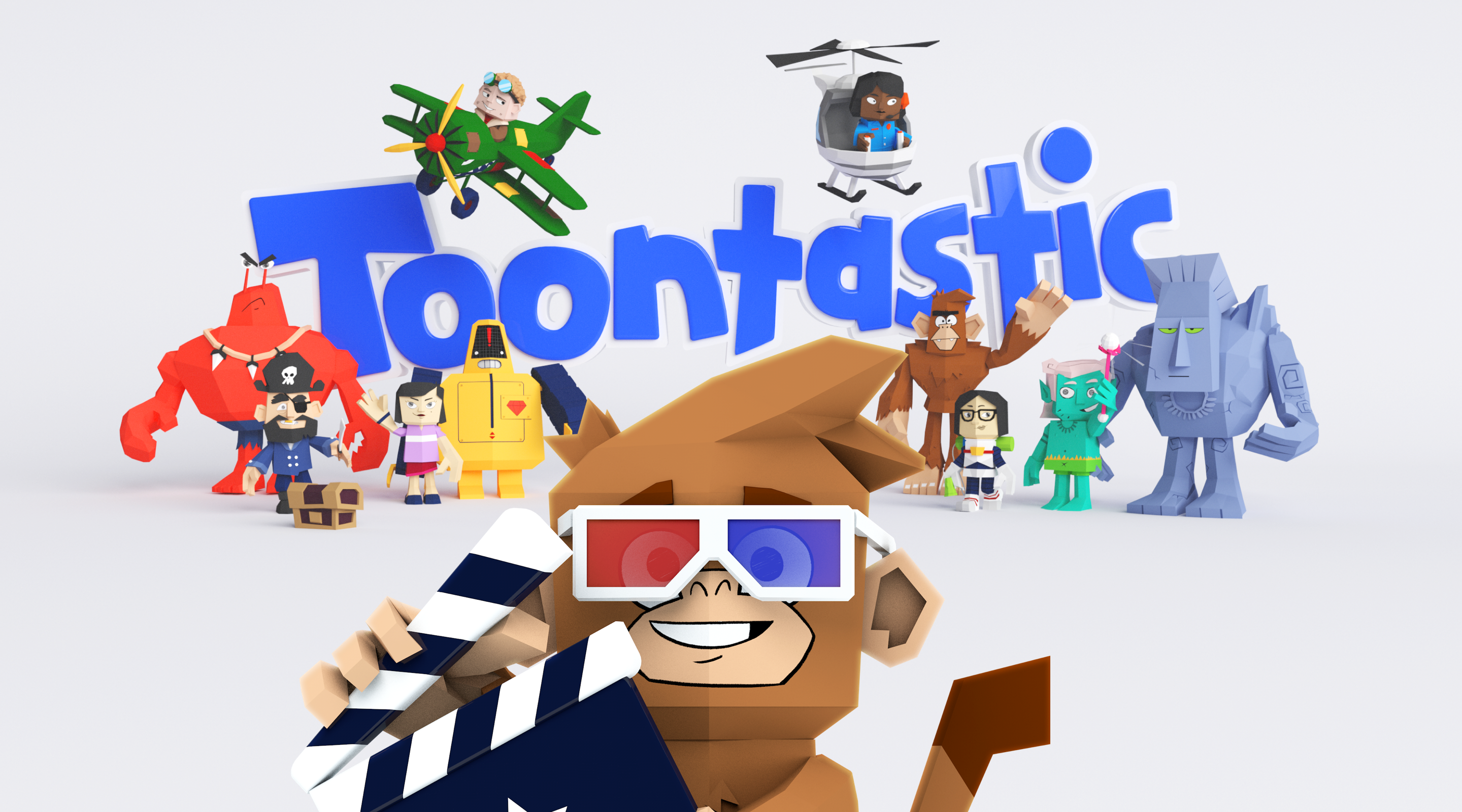
- Lets you draw, animate and narrate your own cartoons; great for beginners and younger creators. Wikipedia+1
- More playful, less “pro” in features — but super fun and approachable.
Limitations: - Not built for high-end animation; more for educational or fun use.
- Feature set comparatively simpler.
7. Clip Studio Paint (Android version)
6
Why it’s worth listing:
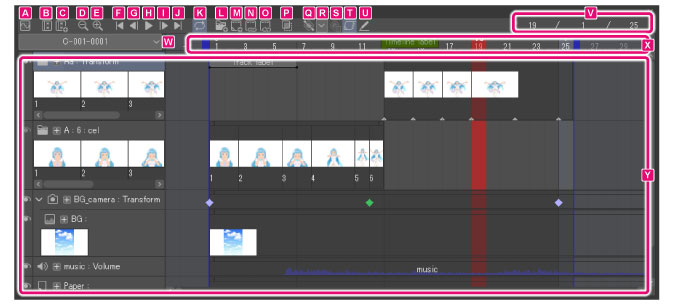
- While known for illustration/comics, the Android version supports animation layers and frames. Wikipedia
- Great for illustrators who want to animate their drawings without switching tools.
Consider: - Not 100% animation-first workflow; you may need to adapt.
- Might require more device resources for smooth performance.
How to Choose the Right One for You
Here’s a quick decision-tree to help you pick:
- Just starting out / want fun & simple animations → FlipaClip, Toontastic 3D.
- Want to draw full animations (2D hand-drawn) on your phone → Animation Desk, RoughAnimator.
- Need motion graphics, effects, keyframes, social-media animation → Alight Motion.
- Already draw or illustrate and want to animate parts of your work → Clip Studio Paint (Android).
- Want vector-based tweening and smoother motion → Synfig Studio (or similar) if you’re comfortable with steeper learning.
Also device & budget matter: some apps demand more RAM, better GPU. Free vs paid features vary: watermarks in free versions, advanced export locked behind subscription.
Finally exporting & sharing: check if the app exports to video, PNG sequence, GIF, supports HD/4K, and if it plays well across platforms.
Important Tips for Android Animation Workflow
- Use a stylus or drawing-tablet mode if possible for better control (especially for hand-drawn).
- Enable layers and onion-skin: being able to see the previous/next frames makes motion much smoother.
- Plan your frame rate: typical 12-24 fps gives good motion; some apps let you set this.
- Save backups! Mobile devices can crash, and animations take time.
- Organise your timeline: name layers, group elements, use parent/child if supported (especially in motion-graphics apps).
- Optimize for device: close other apps, ensure sufficient memory/storage. Some features like motion blur or high resolution may slow older phones.
- Learn keyboard/gesture shortcuts if available (on tablets) to speed up your workflow.
- Export and test: always check on the final device or platform (YouTube, Instagram, etc) for proper playback.
- Keep learning: even simple workflows can benefit from tutorials, communities (Reddit threads discuss apps like FlipaClip as one of the best for Android) Reddit+1